
How to setup IPTV on Perfect Player in Computer
Perfect Player is an Android application that simulates a set-top box which can be used for streaming IPTV channels on your favorite devices such as tablets, smartphones, and Smart TV. Please note, this application doesn’t include any IPTV channels. In order to add IPTV channels, you must add your own m3u playlists inside the settings section.
Perfect Player is available on Android, Linux, and Microsoft Windows.
You can download this app via the link:
http://niklabs.com/downloads/
How to add IPTV channels to Perfect Player on PC?
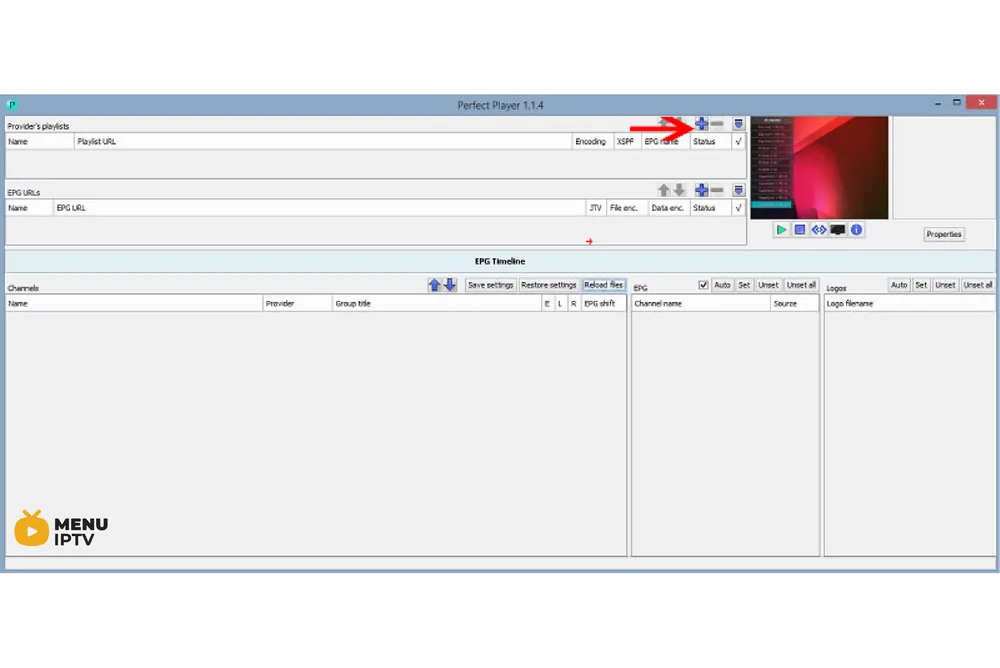
Step 1: Start by clicking on “Add Playlist” button.
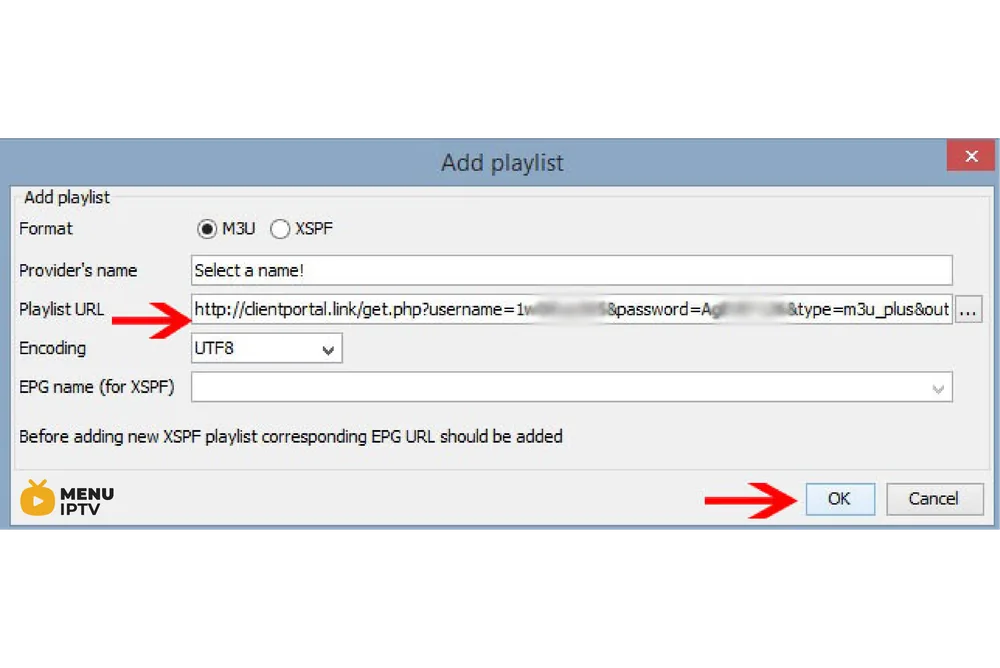
Step 2: Here you must paste your “M3U Playlist URL” which is provided via your IPTV distributor and click on “OK“.
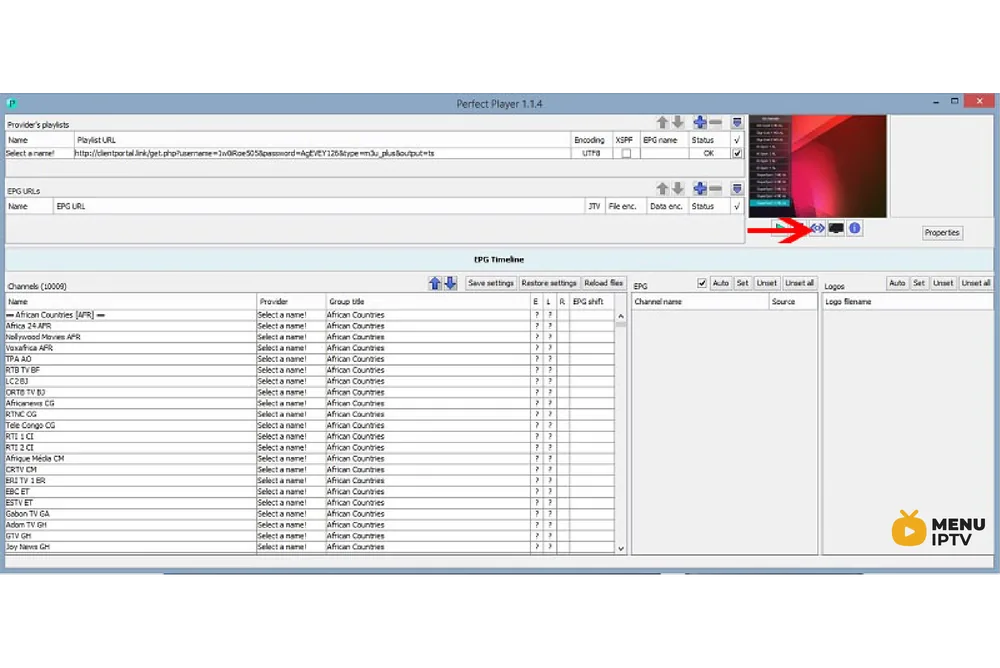
Step 3: Now click on the blue button which is point by the red arrow to bring the list of channels.
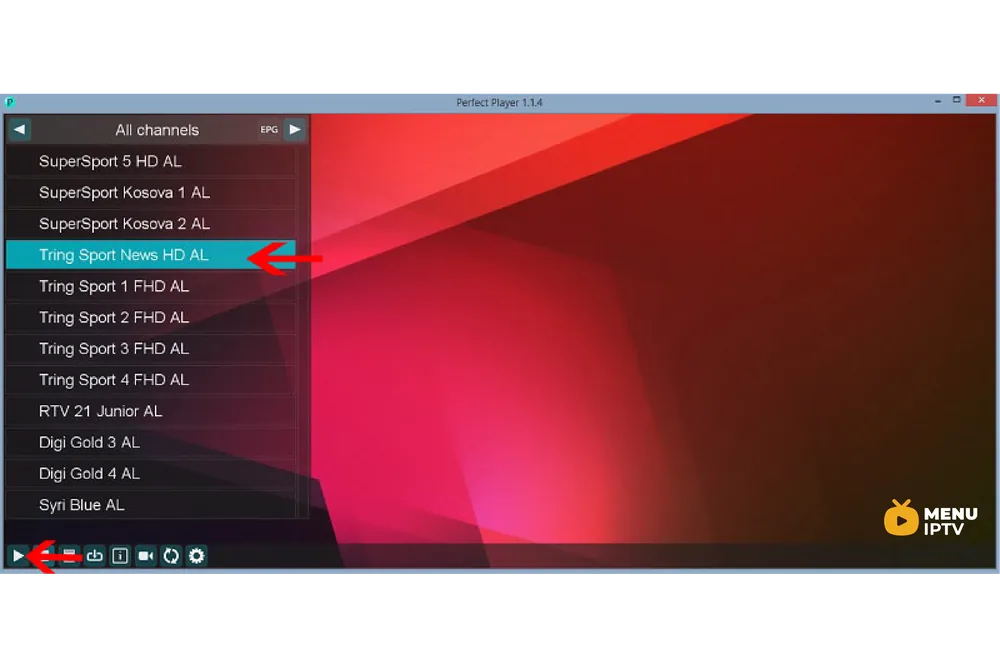
Step 4: Now your playlist is loaded and you can select the channel name and click on “Play” to begin streaming.
If you think need further help, feel free to discuss it with us in the comments section down below.
Need an IPTV subscription for this device? Get the free 24h IPTV test from Menuiptv, then pick a plan from 38 € for 6 months.